Plugin Development Guide
This guide is also available as a PDF.
A Busy Tag plugin is a small web app – HTML, CSS and JavaScript – that the Busy Tag app runs in a hidden WebView. The plugin draws a 240 × 280 image on a canvas and hands it to the host, which converts it and sends it to the device over USB or the cloud. A plugin can also set the LED colour, play LED patterns, show animations, store secrets, call web APIs and, on desktop, read local files. This guide covers the plugin file layout, the lifecycle, the full busyTagPlugin API, the screen constraints of the device, and how to package and install a plugin.
How plugins work
Each plugin has two pages, and the app loads each one in its own WebView:
main.html– the runtime page. It stays loaded while the plugin instance exists. Whenever the instance is the one showing on the device it is active, and it pushes images and LED colours. If the manifest setshasInteractiveModetotrue, the user can also open this page from Integrations.config.html– the settings page. It opens when the user configures an instance. It edits a JSON config object, renders a live preview in the host’s device mock-up and returns the config when the user presses Save.
The pages talk to the host through window.busyTagPlugin, which is defined by the shared library pluginlibrary.js. The host loads this library into every plugin page automatically, so you never include it yourself. Calls from the page are queued and sent to the host as URL navigations (busytag://command?…). To call back into the page, the host uses busyTagPlugin.fireEvent(), which dispatches busytag:* events on window.

Instances, rotation and activation
The user adds a plugin to Integrations as an instance. Each instance has its own config and its own secure storage, so one plugin can run as several instances, for example two World Clocks set to different cities. Enabled instances take turns on the device. Each instance stays on screen for its display duration (15 s, 30 s, 1 min, 2 min or 5 min) and then the next one takes over.
When an instance takes the screen, the host sends busytag:activated. When it hands the screen over, the host sends busytag:deactivated. Device calls made while the instance is inactive (setImage, setLedColor, setAnimation, playPattern, stopPattern) are ignored and log a console warning. The page itself keeps running the whole time, so it can keep fetching data in the background. It then has an image ready the moment it is activated.
File layout
my-plugin/
  manifest.json   required  metadata and capability declarations
  main.html       required  runtime page (draws device images)
  config.html     required  settings page
  script.js       optional  shared drawing/data code used by both pages
  icon.png        optional  80x80 px icon for the gallery and install dialog
  ...             optional  any other assets your pages reference
The three required files must be at the root of the plugin folder (and of the ZIP; see Packaging and installing). Subfolders are allowed for your own assets.
Shared host files
The app ships two shared files in the parent Plugins folder. Reference them with these exact tags:
<link rel="stylesheet" href="../plugin-ui.css">   <!-- in <head> -->
<script src="../plugin-ui.js"></script>          <!-- before your own scripts -->
<script src="script.js"></script>
Mobile portability. On Android and iOS (and the sandboxed Mac App Store build) the page is loaded from an in-memory HTML string. The host makes these files work there by finding the three tags above character for character and inlining the files in their place. If you add attributes (defer, type, id), change the quotes or rename script.js, the tag is not inlined and the file silently fails to load on those platforms. Desktop builds load from disk and do not show the problem.
manifest.json
{
  "id": "acme-rss-headlines",
  "name": "RSS Headlines",
  "description": "Shows the latest headline from an RSS feed.",
  "version": "1.0.0",
  "author": "Acme Ltd",
  "hasInteractiveMode": true,
  "iconBackgroundColor": "#7D2BC4",
  "supportedPlatforms": ["windows", "macos", "android", "ios"],
  "fileAccess": [
    { "pattern": "~/Documents/feeds/*.xml",
      "purpose": "Load your saved feed list" }
  ]
}
| Field | Req. | Meaning |
|---|---|---|
id | yes | Letters, digits, - and _; 1–64 characters. Must not match a built-in plugin id. Prefix it with your name (acme-…) to avoid collisions with future built-ins. |
name | yes | Display name in the gallery, the Integrations list and the install dialog. |
version | yes | Any non-empty string; semantic versioning (1.2.0) is recommended. Increase it on every release, because the install dialog shows the installed version next to the new one. |
description | no | One short paragraph shown on the tile and in the install dialog. |
author | no | Shown as “by …” in the install dialog. |
hasInteractiveMode | no | true if main.html has a UI worth opening. Set it to false for plugins that only render device images. |
iconBackgroundColor | no | Hex colour drawn behind the plugin’s initials when there is no icon.png. |
supportedPlatforms | no | Case-insensitive list of windows (or winui), macos (or maccatalyst), android, ios. If you omit it or leave it empty, the plugin is available on every platform. |
fileAccess | no | Host file read rules; see Reading local files (desktop). |
systemAccess | no | OS capabilities the plugin uses. Currently only "nowPlaying"; see System bridge: now playing. |
developerOnly | no | If true, the plugin is listed only while Developer Mode is on. This is meant for unfinished built-in plugins. |
A minimal plugin
The example below is a complete working plugin. It shows a greeting and the current time and lets the user choose the text and the colours. Like the built-in plugins, it puts the drawing code in script.js so that both pages draw the image the same way.
script.js – shared drawing
const DEFAULT_CONFIG = {
    greeting: 'Hello!',
    textColor: '#FFFFFF',
    backgroundColor: '#000000',
    ledColor: '#7D2BC4'
};

function loadConfiguration(config = {}) {
    return { ...DEFAULT_CONFIG, ...config };
}

// Always render at the device's native size.
function renderImage(config) {
    const canvas = document.createElement('canvas');
    canvas.width = 240;
    canvas.height = 280;
    const ctx = canvas.getContext('2d');

    ctx.fillStyle = config.backgroundColor;
    ctx.fillRect(0, 0, 240, 280);

    ctx.fillStyle = config.textColor;
    ctx.textAlign = 'center';
    ctx.textBaseline = 'middle';
    ctx.font = 'bold 30px sans-serif';
    ctx.fillText(config.greeting, 120, 130);

    const now = new Date();
    ctx.font = '22px sans-serif';
    ctx.fillText(now.toLocaleTimeString([], { hour: '2-digit', minute: '2-digit' }), 120, 175);

    return canvas.toDataURL('image/png');
}
main.html – runtime page
<!DOCTYPE html>
<html lang="en">
<head>
    <meta charset="UTF-8">
    <title>Hello</title>
    <link rel="stylesheet" href="../plugin-ui.css">
</head>
<body>
    <script src="../plugin-ui.js"></script>
    <script src="script.js"></script>
    <script>
        let config = loadConfiguration();
        let timer = null;

        window.addEventListener('busytag:initialized', (e) => {
            config = loadConfiguration(e.detail || busyTagPlugin.getConfig());
        });

        window.addEventListener('busytag:activated', () => {
            pushToDevice();
            timer = setInterval(pushToDevice, 60000);
        });

        window.addEventListener('busytag:deactivated', () => {
            clearInterval(timer);
            timer = null;
        });

        window.addEventListener('busytag:configUpdated', (e) => {
            if (!e.detail) return;
            config = loadConfiguration(e.detail);
            if (timer) pushToDevice();
        });

        function pushToDevice() {
            busyTagPlugin.setImage(renderImage(config));
            busyTagPlugin.setLedColor(config.ledColor);
        }

        // Called by the host when the user pushes the
        // interactive page to the device.
        function getDeviceImage() { return renderImage(config).split(',')[1]; }
        function getLedColor() { return config.ledColor; }
    </script>
</body>
</html>
config.html – settings page
<!DOCTYPE html>
<html lang="en">
<head>
    <meta charset="UTF-8">
    <title>Hello - Settings</title>
    <link rel="stylesheet" href="../plugin-ui.css">
</head>
<body>
<div class="pl-page">
    <header class="pl-header">
        <h1 class="pl-header__title">Hello</h1>
    </header>
    <form class="pl-form" id="form" onsubmit="event.preventDefault();">
        <section class="pl-section">
            <div class="pl-field">
                <label class="pl-label" for="greeting">Greeting</label>
                <input class="pl-input" id="greeting" type="text" maxlength="12">
            </div>
            <div class="pl-field">
                <label class="pl-label" for="ledColor">LED</label>
                <label class="pl-color">
                    <input type="color" id="ledColor">
                    <span class="pl-color__hex"></span>
                </label>
            </div>
        </section>
    </form>
</div>
<script src="../plugin-ui.js"></script>
<script src="script.js"></script>
<script>
    let config = loadConfiguration();
    const greetingEl = document.getElementById('greeting');
    const ledEl = document.getElementById('ledColor');

    window.addEventListener('busytag:initialized', (e) => {
        if (e.detail) config = loadConfiguration(e.detail);
        greetingEl.value = config.greeting;
        ledEl.value = config.ledColor;
        plUI.bindColorInput(ledEl);
        updatePreview();
    });

    // The ONLY place saveConfig() may be called (see warning).
    window.addEventListener('busytag:configRequested', () => {
        busyTagPlugin.saveConfig(readForm());
    });

    function readForm() {
        config.greeting = greetingEl.value;
        config.ledColor = ledEl.value;
        return config;
    }

    function updatePreview() {
        readForm();
        busyTagPlugin.updatePreview(renderImage(config));
        busyTagPlugin.setLedPreview(config.ledColor);
    }

    document.getElementById('form').addEventListener('input', updatePreview);
</script>
</body>
</html>
Only call saveConfig() from busytag:configRequested. The host treats every saveConfig call from the settings page as the user pressing Save: it stores the config, shows the “saved” message and closes the settings page. A saveConfig call in an input or change handler therefore closes the page on the user’s first keystroke. Keep the working config in a local variable and return it only when the host asks for it.
Lifecycle events
All events are dispatched on window as CustomEvents named busytag:<name>, and their payload is in event.detail.
| Event | Page | When / payload |
|---|---|---|
ready | both | The library has loaded. You rarely need this event. |
initialized | both | The host has supplied the instance config. detail is the config object ({} for a new instance). Do your setup here. |
activated | main | The instance now owns the device screen. Push an image straight away and start any periodic updates. |
deactivated | main | Another instance owns the screen. Stop pushing and clear timers. Data fetching may continue. |
configUpdated | both | The config changed (the user saved new settings, or the page called saveConfig). detail is the new config. |
configRequested | config | The user pressed Save. Reply with busyTagPlugin.saveConfig(config). If you don’t reply, the changes are lost. |
patternsReceived | main | Reply to requestPatterns(). detail is [{name, description}, …]. |
redirect | both | A browser panel or system browser was redirected to busytag://redirect?…. detail holds the query parameters as an object. |
browserClosed | both | The user closed the browser panel. |
Late listeners are safe. The host can call initialize() or activate() while your page is still parsing, before your trailing <script> has added its listeners. The library records the state events (ready, initialized, activated, deactivated, configUpdated, patternsReceived) and replays the latest of each to any listener that subscribes later. A replayed activated is dropped once deactivated has fired, and the reverse. One-shot events (redirect, browserClosed, configRequested) are not replayed.
API reference
Config
| Method | Description |
|---|---|
getConfig() | Returns the current config object. |
saveConfig(config) | Stores the config and fires configUpdated. In config.html, call it only from configRequested. |
Config is stored as JSON, so use plain values: strings, numbers, booleans, arrays and objects. Don’t keep secrets in it; use secure storage instead (Secure storage).
Device output (main.html, active only)
| Method | Description |
|---|---|
setImage(base64OrDataUrl) | Shows a still image on the device. Accepts a data:image/… URL or bare base64. PNG is recommended. |
setLedColor(hex, ledBits = 127) | Sets the LED colour (’#RRGGBB’). ledBits is a bit mask of which LEDs to light; 127 lights all of them. |
setAnimation(frames, options) | Shows an animated GIF built from frames; see Animations. |
requestPatterns() | Asks the host for the device’s LED patterns, which arrive in patternsReceived. This also works while the instance is inactive. |
getPatterns() | Returns the last pattern list that was received. |
playPattern(name, loop = false) | Plays a named LED pattern. |
stopPattern() | Stops the current pattern. |
Image and LED updates are coalesced. If several setImage calls are queued, only the newest one reaches the device, and the same goes for setLedColor, setAnimation, updatePreview and setLedPreview. Pushing every second is therefore harmless, but it is still wasteful: each image upload takes real time over USB and over the cloud. Push only when what is on screen actually changes. A clock, for example, needs a push once a minute, on the minute.
Preview (config.html)
| Method | Description |
|---|---|
updatePreview(base64OrDataUrl) | Updates the device mock-up in the settings window. Nothing is sent to the device. |
setLedPreview(hex, ledBits = 127) | Updates the LED in the mock-up. |
Host hooks (main.html)
When the user pushes an interactive plugin page to the device by hand, the host calls two global functions if they exist. getDeviceImage() returns bare base64 (no data: prefix), and getLedColor() returns a hex string. Define them whenever hasInteractiveMode is true.
Utilities (both pages)
| Method | Description |
|---|---|
log(message) | Writes to the WebView console (console.log). |
openUrl(url) | Opens a URL in a browser panel; see Browser panel and OAuth. |
secureStorage.* | Per-instance key/value store for secrets; see Secure storage. |
http.request(options) | HTTP request made by the host, free of CORS limits; see Network access. |
fs.* | Reads host files (desktop only); see Reading local files (desktop). |
system.getNowPlaying(opts) | Returns the desktop media session; see System bridge: now playing. |
Designing for the device screen
The screen is 240 pixels wide and 280 pixels tall. Always draw on a canvas of exactly that size. The host scales other sizes, but text then comes out blurry. Images are converted to the device’s RGB565 format, so gradients may show slight banding.
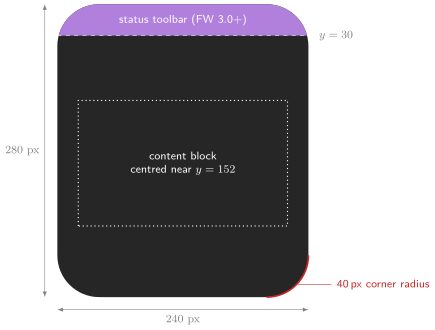
Status toolbar safe area
Firmware 3.0 and later draws a status toolbar over the top 30 px of the screen. The user can turn it off, and older firmware never shows it. A plugin cannot tell which case applies, so lay the screen out to look right either way. Measure your content block, centre it vertically around y ≈ 152, and never start it above y = 32. That clears the toolbar when it is shown and leaves a balanced margin when it isn’t. Don’t pin a header to the very top, and don’t leave a permanently empty 30 px strip either.
Rounded corners
The glass has rounded corners. Design against a 40 px radius. Full-bleed artwork is fine there, because it is only cropped. Text, progress bars, badges and icons near a corner get cut off on the device even though they look fine in the square preview.
The risky case is a label anchored to a side margin on one of the top or bottom rows. A 12 px side margin is plenty mid-screen and almost nothing in a corner. On a row that is d pixels from the nearest horizontal edge (for d < 40), the visible edge moves inwards by
inset(d) = 40 − √(40² − (40 − d)²)
which is already about 14 px when d = 10. Either add that inset to the label’s margin or move the row further from the edge. The top corners also lose the toolbar strip, which makes them the tightest part of the screen.
function cornerInset(y, radius = 40, height = 280) {
    const d = Math.min(y, height - y);
    if (d >= radius) return 0;
    return radius - Math.sqrt(radius * radius - (radius - d) * (radius - d));
}
Legibility
- The device is read from a desk away. Body text should be about 18 px or larger, and the main figure 40 px or larger.
- Use high contrast. Thin hairlines and grey-on-grey text disappear on the panel.
- Measure long or user-supplied strings with
ctx.measureText()and shrink or truncate them so they fit. Don’t let them run off the edge. - Bundle any web font with the plugin, and wait for
document.fonts.readybefore drawing. Otherwise the first frame is drawn in a fallback font.
Animations
setAnimation(frames, options) turns a list of frames into an animated GIF on the host and shows it on the device.
const frames = [];
const canvas = document.createElement('canvas');
canvas.width = 240; canvas.height = 280;
const ctx = canvas.getContext('2d');

for (let i = 0; i < 8; i++) {
    ctx.fillStyle = '#000'; ctx.fillRect(0, 0, 240, 280);
    ctx.fillStyle = '#7D2BC4';
    ctx.beginPath();
    ctx.arc(120, 152, 20 + i * 8, 0, Math.PI * 2);
    ctx.fill();
    frames.push({ imageData: canvas.toDataURL('image/png'), delay: 120 });
}

busyTagPlugin.setAnimation(frames, { loop: true, loopCount: 0 });
imageData– a data URL or bare base64 string for each frame.delay– how long the frame is shown, in milliseconds (default 100). GIF stores delays in centiseconds, so values are rounded to the nearest 10 ms.loop/loopCount–loopCount: 0withloop: truerepeats forever. Ifloopisfalse, the animation plays once.
The device accepts files of up to 1 MB. The plugin animation path does not shrink the GIF for you: an oversized file is sent as it is, the device rejects it, and the screen doesn’t change. Keep animations well under the limit by using few frames (10–30), flat colours and small moving areas.
LED patterns
window.addEventListener('busytag:patternsReceived', (e) => {
    const names = e.detail.map(p => p.name);
    if (names.includes('Police')) busyTagPlugin.playPattern('Police', true);
});

window.addEventListener('busytag:activated', () => busyTagPlugin.requestPatterns());
window.addEventListener('busytag:deactivated', () => busyTagPlugin.stopPattern());
The set of patterns depends on the device and its firmware, so check that a pattern is in the list before you play it. Treat patterns as decoration and have a fallback, such as a plain setLedColor.
Network access
Plugins can use fetch() directly for APIs that send CORS headers. For APIs that don’t (most server-to-server APIs), use the host HTTP bridge. It sends the request from the app process and returns the full response:
const res = await busyTagPlugin.http.request({
    url: 'https://api.example.com/v1/status',
    method: 'POST',                 // default GET
    headers: { 'Authorization': 'Bearer ' + token,
               'Content-Type': 'application/json' },
    body: JSON.stringify({ q: 'x' }) // string; ignored for GET/HEAD
});
// res = { status: 200, headers: { 'content-type': '...' }, body: '...' }
if (res.status === 200) {
    const data = JSON.parse(res.body);
}
- The promise resolves for every HTTP status, including 4xx and 5xx, so check
res.statusyourself. It rejects only on transport errors, or when the request takes longer than about 30 seconds. - The
bodyis always a string; binary responses are not supported. Response header names are lower-cased. - Poll politely. The page stays loaded while inactive, so you can refresh data in the background, but match the interval to how often the data really changes. Many APIs rate-limit by IP address.
Secure storage
Use secure storage for tokens and API keys. It keeps them out of the config JSON, which is passed around more freely (it is handed to both pages and written to the page’s localStorage). Each instance has its own store, and the instance’s main.html and config.html share it.
In the current app version, values are stored in the app’s preferences under a hashed key and are only base64-encoded, not encrypted. Treat the store as “kept separately”, not “protected against other software on the machine”. The API will stay the same when platform encryption is added.
busyTagPlugin.secureStorage.setItem('apiKey', key);        // fire and forget
const key = await busyTagPlugin.secureStorage.getItem('apiKey'); // null if missing
busyTagPlugin.secureStorage.removeItem('apiKey');
getItem rejects if the host doesn’t answer within 10 seconds. Values must be strings, so use JSON.stringify for anything structured. Store the token’s expiry time alongside the token so you can refresh it before it runs out.
Browser panel and OAuth
busyTagPlugin.openUrl(url) opens a URL for the user to interact with, typically for sign-in. Your OAuth provider should redirect to busytag://redirect?code=…. The host catches that redirect, closes the browser and fires busytag:redirect with the query parameters:
window.addEventListener('busytag:redirect', async (e) => {
    const { code, state, error } = e.detail;
    if (error || state !== expectedState) return;
    const tokens = await exchangeCode(code);   // your token endpoint
    busyTagPlugin.secureStorage.setItem('refreshToken', tokens.refresh_token);
});
window.addEventListener('busytag:browserClosed', () => showSignInButton());
Each platform opens the URL differently. Windows and macOS use an embedded panel, Android uses the system browser with a busytag://redirect deep link, and iOS uses the system authentication session. Some providers, Google among them, block sign-in from embedded WebViews. Use PKCE wherever the provider supports it. If the token exchange needs a client secret, run it through your own server and never ship the secret inside the plugin. Start sign-in from a button in config.html.
Reading local files (desktop)
A plugin can read files on the computer, but only paths that match a rule in its manifest’s fileAccess. Each rule is shown to the user in the install dialog. The bridge works on Windows and macOS only, so add supportedPlatforms to plugins that depend on it.
"supportedPlatforms": ["windows", "macos"],
"fileAccess": [
  { "pattern": "~/.mytool/state.json",
    "purpose": "Read MyTool's current status" },
  { "pattern": "
    "purpose": "Count today's builds" }
]
- In patterns,
*matches within one path segment,**matches across segments and?matches a single character.~expands to the user’s home folder, and%VAR%or${VAR}expand environment variables. Use/as the separator on every platform. - A bare
"**"pattern grants read access to the whole disk. The install dialog flags it with a warning, so avoid it. purposeis shown verbatim to the user, so write a concrete reason.
| Method (returns a Promise) | Resolves to |
|---|---|
fs.readText(path) | The file contents as a UTF-8 string. |
fs.readBytes(path) | The file contents as a base64 string. |
fs.exists(path) | true or false. |
fs.listDir(path) | [{name, isDirectory, size}, …]. |
fs.findText(path, regex) | The first match of a .NET regular expression as [whole, group1, …], or null. Only the match is sent to the page, so use this instead of readText to pull one value out of a large file. |
fs.needsAccess(folder) | true if the sandboxed macOS build still needs the user to grant access to folder (always false on other builds). |
fs.requestAccess(folder) | Opens a folder picker at folder and resolves to true once access is granted. Call it from a button click in config.html. |
Failed calls reject with an Error whose message starts with a code you can test for:
PermissionDenied:– the path matches none of the manifest’s rules.NotFound:– the file or folder doesn’t exist.AccessRequired:– sandboxed macOS only: the user hasn’t granted access to the folder yet.plUI.mountFolderAccess(el, folder, opts)renders a ready-made “Grant access” notice for this case.
System bridge: now playing
Plugins that declare "systemAccess": ["nowPlaying"] can ask the desktop which media is playing. On Windows the information comes from the system media controls; on macOS it comes from Apple Music.
const np = await busyTagPlugin.system.getNowPlaying({
    playerFilter: 'any',         // or 'apple'
    includeArt: true,
    knownTrackId: lastTrackId    // skip re-sending cover art you already have
});
// { supported, reason, hasSession, playerName, playing, title, artist, album,
//   trackId, positionMs, durationMs, artBase64, artMime, artUnchanged }
positionMs is the position at the player’s last update, not at the moment of your call. To show a moving progress bar, advance the position with your own clock while playing is true.
Settings UI kit
plugin-ui.css provides the look of the built-in plugins: pl-page, pl-header, pl-section, pl-field, pl-label, pl-input, pl-select, pl-color, pl-row pl-row--2/--3, preset grids and more. It follows the app’s light and dark themes, so prefer these classes to your own styles. The built-in plugins in BusyTag/Resources/Raw/DefaultPlugins show every component in use.
plugin-ui.js adds window.plUI:
| Helper | Purpose |
|---|---|
plUI.toast(msg, type) | A short notice. type is success, error, warning or info; shortcuts such as plUI.toast.error(msg) exist. |
plUI.bindColorInput(input) | Keeps the .pl-color__hex label in sync with a colour input. |
plUI.bindPresetGrid(root, onChange) | Wires up a grid of preset buttons: selection state (aria-pressed) and keyboard navigation. |
plUI.applyAccent(hex) | Overrides the accent colour. |
plUI.mountFolderAccess(el, folder, opts) | “Grant access” notice for sandboxed macOS folder reads. |
Use toasts only for real news: errors, warnings, or confirming an action that otherwise gives no feedback. Don’t toast “Ready” when the page loads, on every preview redraw, or “Settings saved” (the host already shows that message).
Packaging and installing
Zip the contents of the plugin folder, so that manifest.json is at the root of the archive and not inside a subfolder:
# Windows (PowerShell)
Compress-Archive -Path my-plugin\* -DestinationPath my-plugin.zip

# macOS / Linux
cd my-plugin && zip -r ../my-plugin.zip .
To install it, the user opens Integrations → Add Integrations → Install from ZIP…. The app then:
- checks that the required files are present, that
manifest.jsonparses, that theidis valid and not reserved, and that no entry in the ZIP points outside the plugin folder; - shows the install dialog with the name, version, author, description, every
fileAccessrule with its purpose, platform notes and, if the plugin is already installed, an upgrade notice; - extracts the files to a staging folder and moves them into place, so a failed install never leaves a half-written plugin;
- refreshes the plugin list. No restart is needed.
Installing a ZIP with the same id upgrades the plugin and keeps the existing instances and their configs. Because of that, new versions must read old configs. Merging the stored config over a set of defaults, as loadConfiguration() does above, handles this.
Debugging
-
Develop in a desktop browser first. Open
main.htmldirectly, stub the bridge and fire the events yourself:window.busyTagPlugin = window.busyTagPlugin || {getConfig: () => ({}), log: console.log,setLedColor: c => console.log('LED', c),setImage: src => document.body.append(Object.assign(new Image(), { src }))};window.dispatchEvent(new CustomEvent('busytag:initialized', { detail: {} }));window.dispatchEvent(new CustomEvent('busytag:activated')); -
Check the layout with real pixels. Render your images in a headless browser and compare them with the toolbar and corner-radius safe areas. Reading the drawing code won’t show you text collisions.
-
Inside the app there is no plugin log viewer, and
busyTagPlugin.log()only writes to the WebView console. To see what a plugin is doing, write diagnostics onto the canvas itself or into the interactive page’s DOM. That is the quickest dependable way. -
Installed plugins live in the app’s data folder under
Plugins/<id>/. Editing files there and reopening the plugin is a fast way to iterate.
Checklist before release
idis unique and prefixed;versionhas been increased.- Every canvas is 240 × 280.
- Content clears the top 30 px toolbar strip and the 40 px rounded corners, and still looks balanced when there is no toolbar.
activatedpushes an image straight away;deactivatedclears all timers.config.htmlcallssaveConfig()only insideconfigRequested.- The config is merged over defaults, so older saved configs still load.
- Secrets are in
secureStorage, not in the config or in the source. fileAccesspatterns are as narrow as possible and each has a clearpurpose.supportedPlatformsis set if the plugin depends on desktop-only features.- The shared-file tags are written exactly as in Shared host files, and the plugin works on a phone.
- Network polling matches how often the data really changes, and errors are shown on the device instead of leaving a blank screen.