Using the app
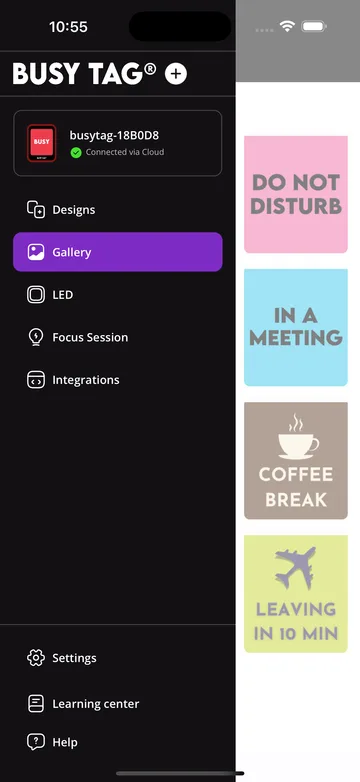
The app has the same sections on every platform. Open them from the side menu: tap the menu icon in the top-left corner (or swipe in from the left edge) on a phone; in a wide window on a computer the menu stays open. The menu also shows which device is selected and how it is connected. With more than one Busy Tag, pick the device you want to control there.
Designs
A design is what Busy Tag shows: an image or animated GIF on the screen plus an LED colour or pattern. Tap a design to send it to the device.
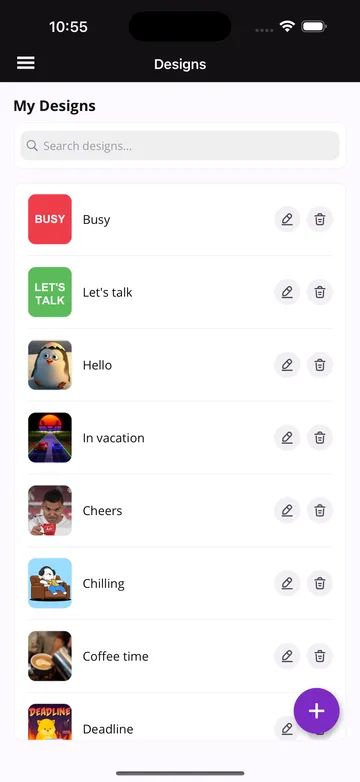
Create a design with Create New Design. The editor has two tabs:
- Display: a solid colour or a background image, and optional text with its own style, colour and position. For the background you can use your own photos, search online images (photos by Pexels, GIFs by KLIPY), or upload a PNG or GIF. A video can be turned into a GIF with Video to GIF: choose the start and end of the clip.
- LEDs: the LED colour or one of the default patterns that plays with the design.
GIFs can be at most 1 MB on the device. Larger files are optimised automatically.
Share and import designs from a design's ⋯ menu:
- Share image / GIF sends just the picture.
- Share as design file sends a
.busytagdesignfile with the image, text and LED settings. - Share via link creates a link and QR code that another Busy Tag app can open.
To bring designs in, use Import design file: choose a file, scan a design QR code or paste a link. Export all designs saves your whole library to a folder.
Gallery
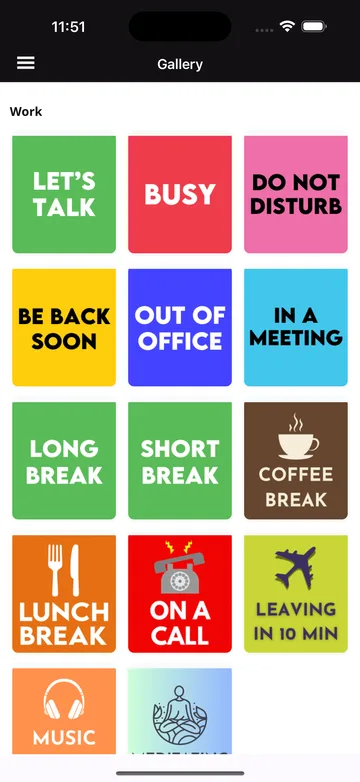
Ready-made Busy Tag designs plus GIFs, stickers and clips (powered by KLIPY). Tap an item to show it on the device. Long-press it (right-click on a computer) for more actions: Save as new design keeps it in your Designs, with or without the selected LED colour.
LED
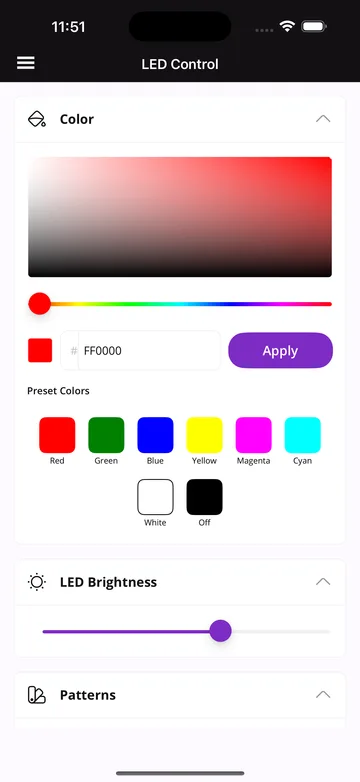
Control the LEDs directly:
- Preset Colors: one tap for red, green, blue, yellow, magenta, cyan, white or off.
- Color: pick any colour with the colour wheel.
- LED Brightness: 1–100 %.
- Patterns: flashes, running lights, pulses, police lights and more. Stop Pattern returns to the solid colour.
Focus Session
A Pomodoro timer that counts down on Busy Tag, so people around you see that you are focusing.
- Choose Tomato (work), Short or Long break.
- Adjust the durations, the background and LED pattern shown on the device, and after how many work sessions the long break comes.
- Tap Start. Reset starts over.

On Android and iOS the timer runs only while the app is open and in the foreground. If the phone locks or you switch apps, the session pauses until you come back.
Integrations
Integrations (plugins) show live information on Busy Tag: clocks, weather, calendars, e-mail, stock prices, AI-usage meters and more. Each one has its own user guide.
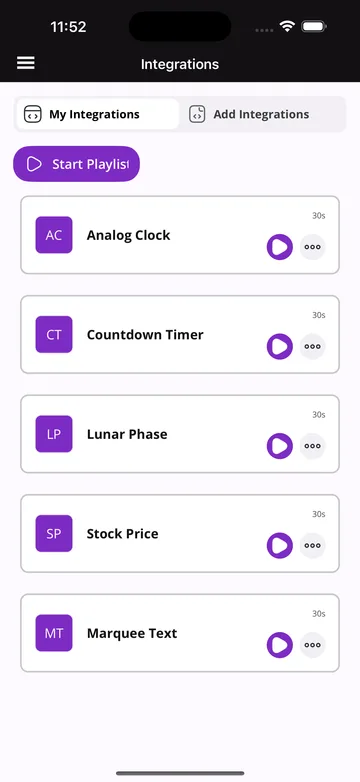
- Add Integrations lists the available plugins. Add one, then configure it. You can also
Install from file a
.busytagpluginpackage, for example one you built yourself. - My Integrations lists the ones you added. ▶ shows one on the device now.
- Start Playlist rotates through your integrations. Set how long each one stays on screen (15 s – 5 min) and Include in playlist / Exclude from playlist in its ⋯ menu, where you also find Configure, the icon colour, the order and Delete.
On phones and tablets integrations update only while the app is open and in the foreground.
Settings

- Device settings: tap a device to rename it, set screen and LED brightness, see and delete files on the device, configure Wi-Fi, share the device and update its firmware (see Firmware updates).
- Advanced settings: restart the device or format its storage.
- Add device: set up a new device or add a shared one (Connect).
- Startup behavior (Windows and macOS): start the app when you log in.
- App Language and App Theme (dark mode).
- App info: the app version and, for direct installs, app updates.
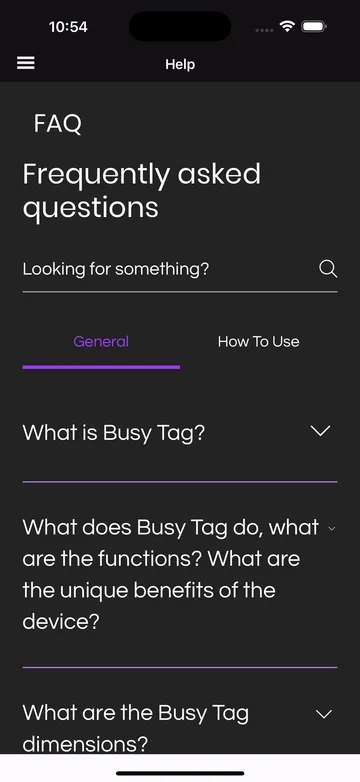
Help and Learning center
Help opens the FAQ from busytag.com. Learning center opens the tutorials on busytag.com.